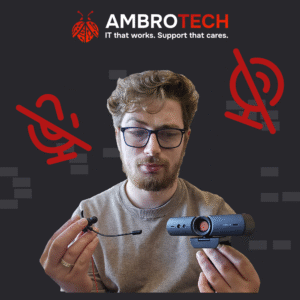

Having Microphone/Camera Issues on Teams/Zoom/Google Meets etc? Here’s a free list of some of the most common fixes I’ve applied in the past month or so. Feel free to give them a try and if you don’t have any luck, you know who to call!
1) Camera Privacy Shutter/Switch
On many laptops and some desktop webcams, you will find a manual cover/shutter for the camera which can hide or reveal you in web calls. Sometimes, instead of a manual slider on the camera itself, it’s a switch on the side of the laptop.
2) Browser permissions
If you’re using Zoom/Teams etc in your web browser (E.g. Chrome, Edge, FireFox) then you should probably consider downloading the desktop versions of those programs to avoid permission negotiations with your browser.
3) Software Updates
Is your video call software up-to-date? If not, quickly run an update to the latest stable version to see if your mic and camera miraculously begin working again!
4) Driver Issues
If you’ve got an older or specialised webcam or microphone, you may indeed require a specific driver which Windows can’t source by itself. It needs the help of a technician to get it working.
5) Port Issues
Perhaps a simple “Unplug and replug” will fix the issue but if not, try some different ports in your computer or perhaps remove the device and its driver in Device manager and then restart your computer.
If none of this helps, AmbroTech will.
[email protected]
01452 234047